 TurtleTV
Before you begin
Everyone needs TurtleTV on a supported device, an internet connection, and access to the same video. For paid streaming services, each person needs their own access to the service and title. A TurtleTV Premium membership does not include Netflix or other streaming subscriptions.
YouTube is a useful starting point: choose a short video that everyone can open. Check your Watch Token balance before a longer session. Pause when people need a break—paused time does not use tokens.
Chrome beta: the extension's public installation link is coming soon. The desktop instructions below are for testers who already have it installed. Mobile downloads are available from the homepage.
Start on mobile
- Open TurtleTV on your iPhone, iPad, or Android device and choose a supported service.
- Open the video you want to watch and start a watch party using the app's party controls. Sign in to the streaming service if it asks you to.
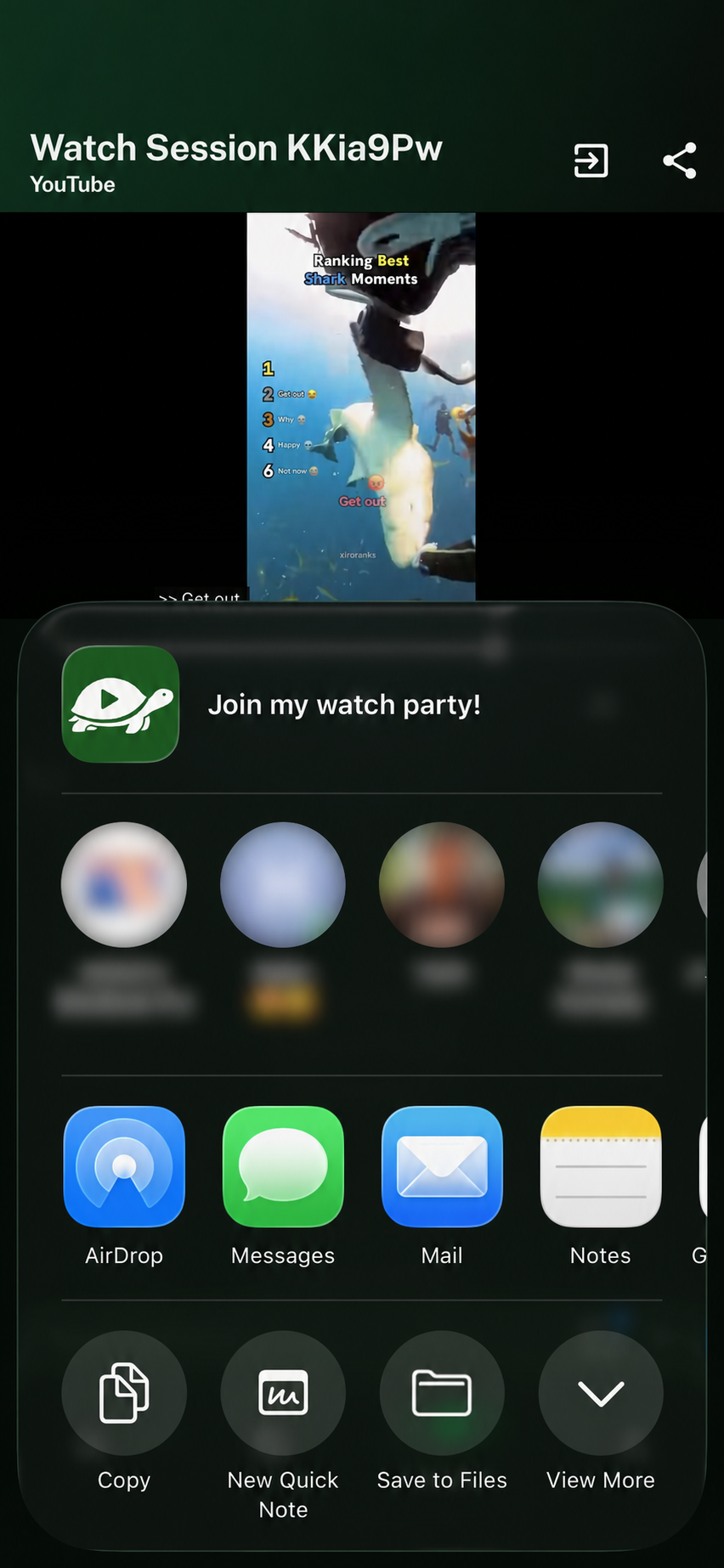
- Use the party's Share control to send an invitation. Share it only with the people you want to join.
- Ask friends to open the invitation with TurtleTV installed. Wait until everyone can see the same video before pressing play.
Start in desktop Chrome
- With the extension installed, open a YouTube video or Netflix title in Chrome. Let the video player load.
- Click TurtleTV in Chrome's extension menu, then Start party. Choose Continue as guest if prompted, or sign in.
- Copy the party's seven-character session code and send it to your friends.
- Friends open their TurtleTV extension, enter the code, and choose Join. The matching video opens in a tab.
Keep the party's video tab open. A different video tab does not control the party. If Netflix requests sign-in or a manual press of Play, complete that step before expecting synchronization.
Once everyone has joined
The host's play, pause, and seek actions guide the party. Guests should let the host handle the timeline. Use the Watching tab to check who is present and Chat to send a message. In the extension, Enter sends and Shift+Enter inserts a new line.
Drag the left edge of the desktop sidebar to give chat between 20% and 50% of the window. The divider also works with the keyboard: Left widens it, Right narrows it, and Home/End choose the minimum/maximum. Escape collapses the panel.
Voice is available when the host's eligible Premium or Lifetime membership enables it. Turn on the microphone and approve access when prompted; mute it when you want to stop transmitting. Headphones help prevent echo. Use Leave to disconnect from the party.
If something gets stuck
First confirm that every participant can play the video independently and is in the same party. A missing title, login prompt, or exhausted token balance needs attention before synchronization can resume. See troubleshooting for playback, microphone, account, and billing steps.