 TurtleTV
Disney+ on TurtleTV: use the iPhone, iPad, or Android app, or the Chrome extension beta. The public extension install link is coming soon; desktop steps are for existing beta testers. Every participant needs their own access to the title.
TurtleTV is that app. Disney+ parties run in its iPhone, iPad, and Android apps, and on desktop through the Chrome extension beta, with synced playback and live chat beside the video. Below is what happened to GroupWatch, the steps that work now, and the fixes to try when a title will not sync.
What changed: GroupWatch is gone
WHAT CHANGED
GroupWatch was Disney+'s own co-viewing feature, and it is gone. It shut down on 18 September 2023, and Disney's GroupWatch help page now drops readers at the general Help Center with no replacement instructions (How-To Geek). That is why searches for Disney Plus GroupWatch removed jumped that month, and why the tutorials still ranking describe a button that is not there.
WHAT SURVIVED
SharePlay, on Apple devices only. Start a FaceTime call, open Disney+ from inside it, and playback stays in step for everyone on the call. Disney's announcement puts a session at up to 32 people and requires every participant to be a Disney+ subscriber on a compatible iPhone, iPad, or Apple TV (Disney press release, 15 December 2021).
That covers a group where everybody owns Apple hardware. It leaves out the Android friend, the mixed group, and anyone who wants a laptop on their side of the call.
WHAT WORKS NOW
A cross-platform watch-party app. Each person keeps their own Disney+ subscription and watches the real stream; the app carries the shared clock and the conversation. TurtleTV runs that layer on phones and tablets, so an iPhone and an Android phone can sit in one party.
Before you start
Does Disney Plus have watch party support built in? No, so the setup happens on your side. Check four things first.
01 Your own Disney+ subscription. Every participant signs in with their own account and has access to the chosen title. Disney's limit on simultaneous streams still applies: an invitation does not add a stream, share a login, or unlock a film. Each person's own plan covers their own screen.
02 TurtleTV on the device each person will watch from. The app on an iPhone, iPad, or Android phone or tablet, or the Chrome extension on a computer - it is a beta.
03 The same title in every account. Region and subscription tier decide availability. An invitation cannot unlock a film that is missing from somebody's catalogue.
04 One host, agreed before the invitations go out. The host's device drives play, pause, and seek for the whole room.
Starting a party costs no Watch Tokens. Active watching uses tokens; check each participant's balance and read the Watch Tokens guide before a longer film.
Start a Disney+ watch party
Four steps, about two minutes.
01 Install "Turtle: Watch Party". That is how the app is listed on the App Store and Google Play; TurtleTV is the same app. Open it.
02 Pick Disney+ and open the title. Sign in to Disney+ if the app asks, then open the exact film or episode you all agreed on.
03 Start the party and send the invitation. Use the party control, then the Share menu. Send it only to the people you invited.
04 Wait until everyone can see the title, then press play. The host's press starts the room. A guest who joins late catches up when the host pauses and resumes.
The getting-started walkthrough shows the invitation screens as they appear on a phone.
Which devices work with Disney+
This is the part most guides skip. Disney's own help covers SharePlay on Apple devices and stays quiet about Android and the web, so here is the map for a Disney+ watch party on TurtleTV.
| Your device | What works |
|---|---|
| iPhone, iPad, Android phone or tablet | Disney+ watch parties in the TurtleTV app. |
| Desktop Chrome | Disney+ watch parties work through the TurtleTV Chrome extension, still in beta. |
| Smart TV, console, streaming stick | No TurtleTV app. Watch on a phone or tablet and join from there. |
| Disney+ Hotstar in India | Does not work with TurtleTV. |
Desktop Chrome. Disney+ watch parties work in TurtleTV's Chrome extension, which is still in beta. Open the party in Chrome and the laptop sits in the same room as everyone's phones, with the same synced playback and chat.
Disney+ Hotstar in India. Disney+ Hotstar in India does not work with TurtleTV. Since 14 February 2025, Disney's catalogue in India has streamed on JioHotstar, the service JioStar formed by merging JioCinema and Disney+ Hotstar (JioStar), and TurtleTV does not support that either. If it is your service, none of these steps will connect, and no setting in the app changes it.
The supported-services guide keeps the full list of what runs where.
How synced playback works
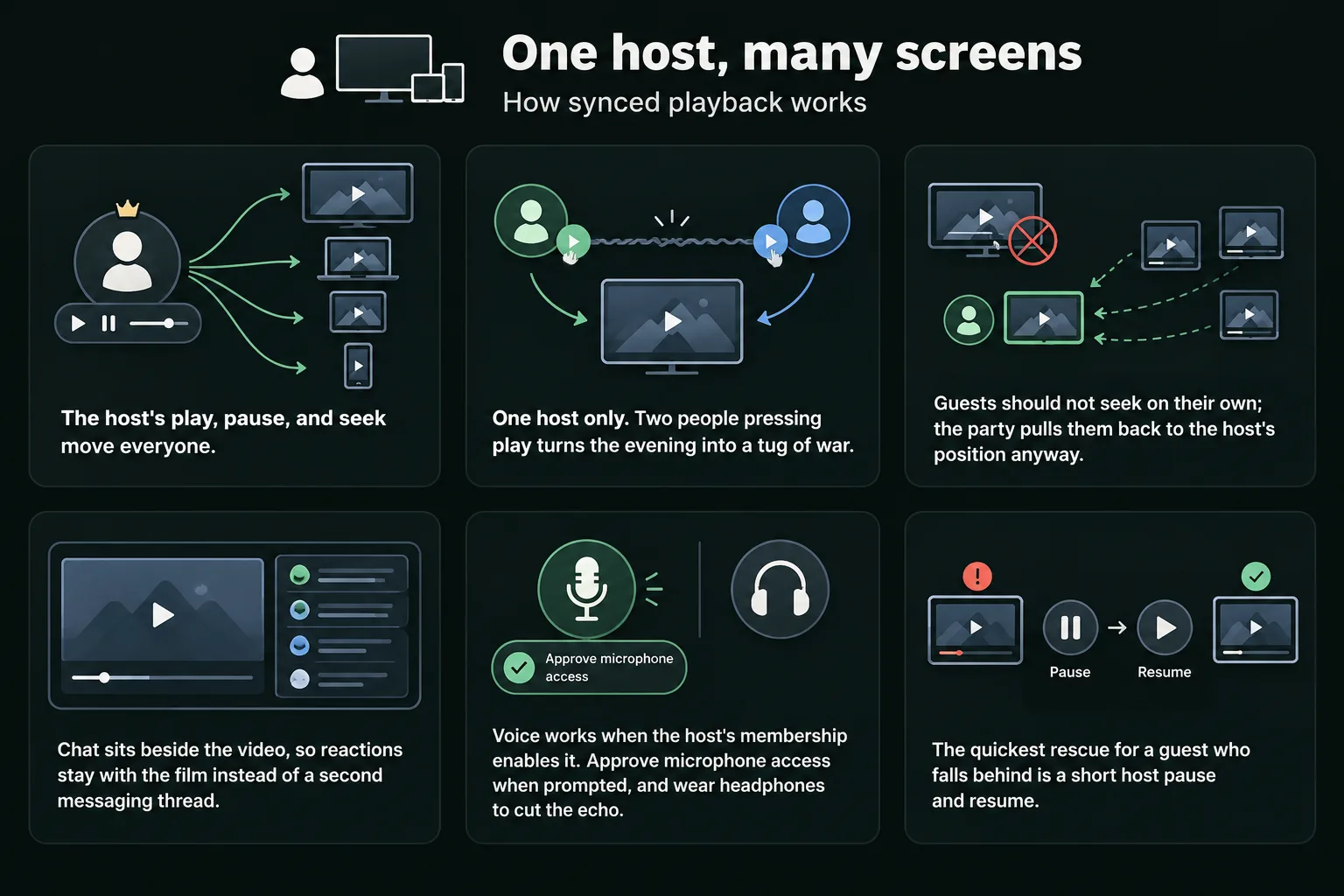
Sync is a rule, not a trick: one timeline, one owner.
The host's play, pause, and seek move everyone.
One host only. Two people pressing play turns the evening into a tug of war.
Guests should not seek on their own; the party pulls them back to the host's position anyway.
Chat sits beside the video, so reactions stay with the film instead of a second messaging thread.
Voice works when the host's membership enables it. Approve microphone access when prompted, and wear headphones to cut the echo.
The quickest rescue for a guest who falls behind is a short host pause and resume.
The mechanics are the same across services, and the Prime Video watch party guide walks through them again if you want a second reference.
If a title will not sync: screen sharing
Screen sharing is the fallback people reach for, and it is worth knowing what it actually does.
Disney+ streams protected content, so a capture can arrive as a black rectangle instead of a picture. The VDO.Ninja documentation names this failure and states that its tools are not intended to get around content protection (docs.vdo.ninja).
It also moves everything onto one person: their connection, their stream, their controls. Nobody else can pause without asking, and one dropout freezes the room.
Where it helps: a short clip that refuses to sync, or a title only one account can open. For a two-hour film, have each person play it through their own access and let the party hold the clock. If the group insists on a laptop, TurtleTV's Chrome extension is the supported route: it runs Disney+ parties in the beta, so nobody has to share a screen at all.
Troubleshooting a Disney+ watch party
Start with the symptom.
Playback drifts apart
The host pauses for a moment and resumes; that re-anchors the room. If drift returns every few minutes, the guest with the weakest connection should move to Wi-Fi, close background apps, and rejoin.
Someone cannot join
Check four things in order: the invitation is the current one, TurtleTV is installed, that person is signed in to Disney+, and the title exists in their region. Rejoining cannot grant access to something they cannot play alone.
The picture is black
If somebody is screen sharing, content protection is the likely cause. Otherwise have them close and reopen the title, confirm it plays outside the party, then rejoin.
Chat or voice is silent
Text chat works as soon as the party does. Voice depends on the host's eligible membership and on microphone permission on each device: approve the prompt, check the app's microphone access in system settings, and wear headphones. Party troubleshooting covers the account and permission cases in full.
A guest was kicked out on a shared login
Disney's simultaneous-stream limit applies. Each participant should use their own account with access to the title.
Nothing connects and you use Disney+ Hotstar
Disney+ Hotstar in India does not work with TurtleTV. That is a support limitation, not a setting you can fix locally.
Disney+ watch party questions
Can I use Teleparty for Disney Plus instead?
Yes, on a computer. Teleparty is a browser extension that keeps Disney+ playback in sync and adds chat beside the video; every participant installs it and opens the title on disneyplus.com (teleparty.com). TurtleTV now covers that ground too: the phone and tablet apps, plus the Chrome extension beta, all with Disney+.
Does everyone need their own Disney+ account?
Yes. Each person streams through their own subscription. The party shares the timeline and the chat, never the login.
Is GroupWatch coming back?
Disney has not announced a return and there is no verified date. The steps here do not depend on it, because they use the app's party controls: a comeback or a long silence changes nothing about them.
Can I host a Disney+ watch party on a laptop?
Yes. Disney+ works in the Chrome extension beta, so a laptop can host or join like any other device: open the extension, pick Disney+, and the same party controls run the room. The supported-services guide lists what runs on each platform.
Do my guests need to install the app?
Yes, when the party is on phones or tablets. The app carries the invitation, the sync, and the chat.
Sources
Sources referenced in this guide.
How-To Geek, "Disney+ Quietly Removed Its GroupWatch Feature" - the shutdown and its date: howtogeek.com
IGN, "Disney Plus Subscribers Mourn the Quiet Removal of the GroupWatch Feature": ign.com
Disney press release, "SharePlay now available on Disney+ for Apple TV, iPhone, and iPad users" - supported devices, 32-person sessions, subscriber requirement: press.disney.co.uk
JioStar, "JioHotstar – Unveiling Infinite Possibilities" - the India service that replaced Disney+ Hotstar: jiostar.com
Teleparty, "Disney Plus Watch Party" - the browser-extension setup: teleparty.com
Ninja Docs, "Screen-share is just a black video": docs.vdo.ninja